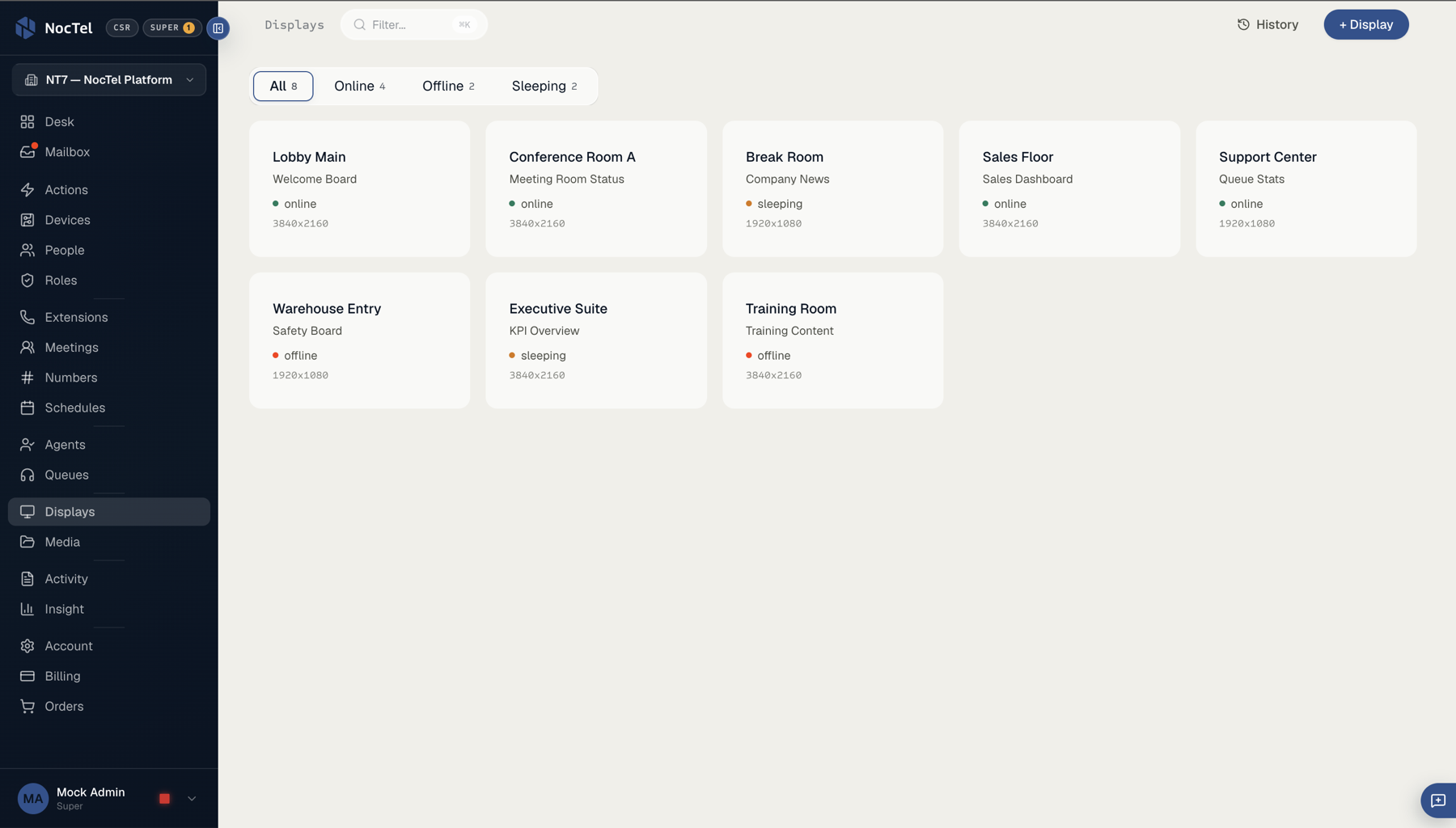
NocTel Displays: managing screens across every room
NocTel Screens gives your team a simple way to update menus, announcements, schedules, and urgent messages across one location or many. Open Desk, change the message, choose where it goes, publish.
NocTel Displays: managing screens across every room
The task is ordinary: a new price, a different announcement, an urgent note. But too often the machinery gets in the way: the right file, the right tool, the right person, the right device, and a quiet hope the content actually updated. The screen is meant for everyone. The control system was built for almost no one.
Do it yourself in NocTel Desk. Change the message, choose where it goes, and publish from the same place you manage your phones and the rest of your communications. No designer, no USB drive, no waiting on someone who knows how the screens work.
A screen doesn’t do just one job. It runs the everyday content, shifts on a schedule, and steps aside the moment something urgent needs the room.
The everyday things: menus, announcements, schedules, weather, countdowns, video. The content that runs all day without anyone thinking about it.
Different content appears automatically at the right time and place: breakfast to lunch, weekday to weekend, one location’s hours to another’s.
Override the normal content and push a message to the screens you choose, right now. The everyday gives way to the urgent in an instant.
A screen can be ordinary most of the day, then become urgent the moment the situation changes.
A price changes, an announcement goes up, a schedule shifts. Make the change once and send it where it matters: to one screen, a group of menu boards, a whole campus, or a wallboard network. Or give each display its own playlist, so the lobby and the break room aren’t forced to show the same thing.
Most signage just plays content. NocTel Screens are part of your communications, so the moment something matters, the screen can change on its own and change back when the moment passes.
An urgent message can override whatever a screen is showing (a menu, an announcement, a schedule) and take over every display at once. When the moment passes, the screens return to normal. And because Screens lives alongside the rest of NocTel, one event can move more than the screens.
Because each screen is part of NocTel, it can display live readings from NocTel Now sensors: current values, charts over time, even locations and trails on an interactive map. A kitchen screen can show live orders; a facilities board can show live conditions. The screen reflects the moment, not a slide someone made last week.
Build a screen from real components and mix them however your space needs: a menu board with a live countdown, a lobby sign with embedded web content, a facilities board reading straight from your sensors.
Use Screens on its own for menus and announcements. The moment you add Alert or Now, the screens start responding: an emergency message that overrides every display, an alert that reaches phones, paging, and screens together. Start with one thing, then notice what becomes possible.
No. You change the message in NocTel Desk and publish from the same place you manage your phones. There’s no file to format, no USB drive, and no waiting on the one person who knows how the screens work.
Yes. Make the change once and push it to one screen or every location at once. Each display can also show its own content when you’d rather not put the same thing everywhere.
Yes. An urgent message can override whatever a screen is showing and take over every display, then return to normal when the moment passes. A NocTel Now badge press can trigger that change at the same moment it rings phones and pages speakers.
Yes. Because each display is part of NocTel rather than a standalone media player, it can show live readings from NocTel Now sensors: current values, charts over time, and locations and trails on an interactive map. A kitchen board can show live orders; a facilities board can show live conditions.
Yes. Alongside the content that runs all day, you can schedule different content to appear automatically at the right time and place (breakfast to lunch, weekday to weekend, one location’s hours to another’s) without anyone publishing the change by hand.
Displays connect to your network and set up on supported devices over NFC. The exact hardware depends on your space, so the most accurate answer is a short conversation: tell us what you’re putting on screen and where, and we’ll spec it with you.
Yes. A real person answers, Monday through Friday, 5am to 6pm PT. Reach us at +1 503.764.4300, toll–free at +1 888.400.4521, or support@noctel.com.